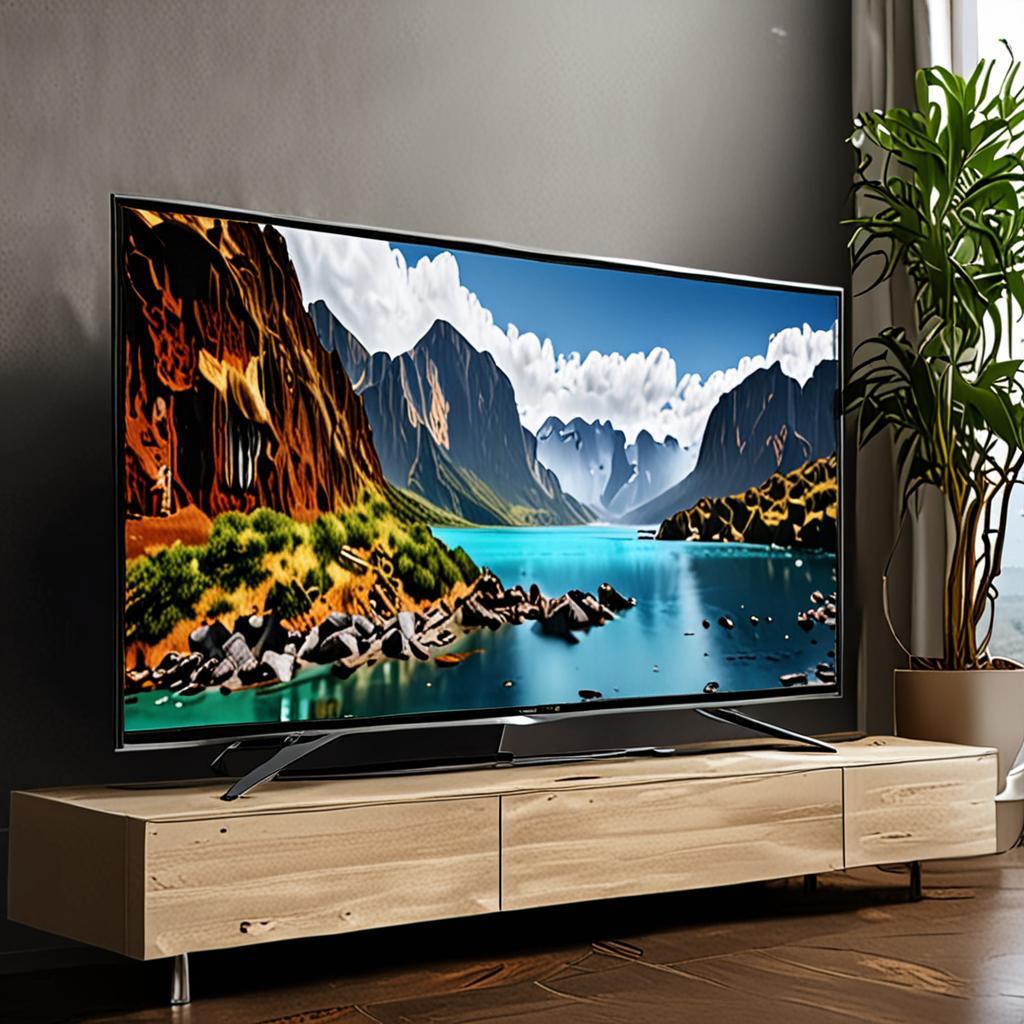
IPTV 4K UHD Setup Guide: Stream in Ultra High Definition
IPTV 4K UHD setup has become one of the most searched topics among streaming enthusiasts in 2026, as more viewers upgrade to 4K televisions and demand content that matches their hardware capabilities. Streaming live television in Ultra High Definition transforms the viewing experience with four times the detail of standard 1080p HD, delivering vivid colors, sharp details, and lifelike imagery that makes you feel immersed in the content.
However, achieving a consistently smooth 4K IPTV experience requires more than just owning a 4K TV. Your streaming device, internet connection, IPTV app configuration, and IPTV service all need to be optimized for Ultra HD delivery. This guide covers every aspect of IPTV 4K UHD setup to ensure you get the stunning picture quality your television is capable of displaying.
Understanding 4K UHD Resolution for IPTV
4K Ultra High Definition refers to a resolution of 3840 by 2160 pixels, which is exactly four times the pixel count of 1080p Full HD. In practical terms, this means dramatically more detail in every frame. During a football match, you can read player names from wide-angle camera shots. During a nature documentary, individual leaves and animal fur textures are visible. During a movie, facial expressions and subtle lighting effects come through with cinema-quality clarity.
The visual improvement is most noticeable on screens 50 inches and larger. On smaller screens or from greater viewing distances, the difference between 4K and 1080p becomes less perceptible. If you have a large 4K television and sit within the recommended viewing distance of 1.5 times the screen diagonal, the upgrade to 4K IPTV streaming is transformative.
Hardware Requirements for IPTV 4K UHD Setup
Your hardware chain is only as strong as its weakest link. Every component from the streaming device to the TV to the HDMI cable needs to support 4K for the full Ultra HD experience.
- 4K Television: Any modern 4K TV from Samsung, LG, Sony, TCL, Hisense, or other major brands will work. Ensure your TV supports HDMI 2.0 or higher.
- Streaming Device: Amazon Fire TV Stick 4K, Fire TV Stick 4K Max, Nvidia Shield TV, Apple TV 4K, or Chromecast with Google TV all support 4K output.
- HDMI Cable: Use a High Speed HDMI cable (HDMI 2.0 or higher). Older HDMI 1.4 cables may not support 4K at full frame rates.
- Internet Connection: Minimum 25 Mbps for a single 4K stream. 50 Mbps or higher recommended for comfortable headroom.
- Router: A modern dual-band or tri-band router with Wi-Fi 5 (802.11ac) or Wi-Fi 6 support. Ethernet connection preferred for best results.
Network Optimization for 4K IPTV Streaming
Your internet connection is the most critical factor in successful IPTV 4K UHD setup. A 4K stream consumes significantly more bandwidth than HD, typically requiring 20 to 35 Mbps of sustained throughput depending on the codec used. With H.265/HEVC encoding, which IPTVProvide uses for its 4K channels, bandwidth requirements are on the lower end of this range.
Start by running a speed test from the device you plan to use for IPTV streaming. The download speed should consistently exceed 25 Mbps. If you plan to stream 4K on one device while other family members use the internet for gaming, video calls, or their own streaming, add their bandwidth requirements to yours. A household streaming one 4K IPTV channel while another person watches YouTube in HD and a third plays online games should target at least 60 Mbps total.
For the most reliable 4K IPTV experience, use a wired Ethernet connection instead of Wi-Fi. Ethernet eliminates wireless interference, signal drops, and bandwidth sharing issues that can cause 4K streams to buffer. If wired connection is not practical, use the 5GHz Wi-Fi band rather than 2.4GHz, and position your router within clear line of sight of your streaming device.
Configuring Your IPTV App for 4K UHD
Most IPTV player apps require specific settings to output 4K content correctly. In your IPTV app, navigate to the video settings or player settings section. Set the video output to match your TV's native resolution (3840x2160 or Auto). Enable hardware decoding, which offloads video processing to your device's dedicated hardware rather than software, resulting in smoother playback and lower power consumption.
In TiviMate, go to Settings, Player, and select ExoPlayer as your video player. Enable Hardware Decoding for both H.264 and H.265 content. Set the buffer size to Medium or Large for 4K content, which pre-loads more of the stream and prevents brief interruptions.
Also ensure your streaming device's system-level output settings are configured for 4K. On Firestick, go to Settings, Display and Sounds, Display, and set Resolution to Auto or 2160p 60Hz. On Nvidia Shield, go to Device Preferences, Display and Sound, and select 4K 60Hz as the output resolution.
IPTVProvide 4K Channel Availability
IPTVProvide offers 4K Ultra HD streaming on premium sports channels, major entertainment networks, and select movie channels. The 4K channel lineup includes content from Sky Sports, BT Sport, ESPN, premium cinema channels, and nature and documentary networks that produce native 4K content.
In addition to native 4K channels, IPTVProvide delivers upscaled HD content that benefits from the cleaner signal path and higher bitrate encoding used across the service. Even channels that broadcast in 1080p look noticeably better on IPTVProvide compared to budget providers that compress their streams to save bandwidth.
With over 29,500 channels total and 99.9 percent uptime backed by anti-freeze technology, IPTVProvide ensures that your 4K viewing experience is consistently stunning whether you are watching a Champions League match, a Hollywood blockbuster, or a wildlife documentary.
Troubleshooting 4K IPTV Streaming Issues
If your 4K streams buffer or stutter, the issue is almost always related to bandwidth or device configuration. First, verify your internet speed meets the 25 Mbps minimum. Second, check that hardware decoding is enabled in your IPTV app. Third, ensure your HDMI cable supports 4K. Fourth, restart your streaming device and router to clear any temporary network issues.
If problems persist, switch to a wired Ethernet connection. Wi-Fi interference from neighboring networks, microwave ovens, and other devices can cause intermittent bandwidth drops that are barely noticeable for HD but devastating for 4K streams.
Experience 4K IPTV Streaming Today
Your 4K television deserves 4K content. Try IPTVProvide free for 24 hours and experience the stunning clarity of Ultra HD live television with over 29,500 channels. From sports in breathtaking 4K to movies with cinema-quality detail, IPTVProvide delivers the visual experience your hardware was built for.
Start your free 24-hour trial and see the difference 4K IPTV makes. For setup assistance and device optimization help, contact IPTVProvide support via WhatsApp at +1 (559) 508-2154. The team can guide you through every step of your IPTV 4K UHD setup.
Ready to Start Streaming?
Get instant access to 20,000+ live channels, 4K streaming, and 80,000+ movies and series.
View Plans & Pricing