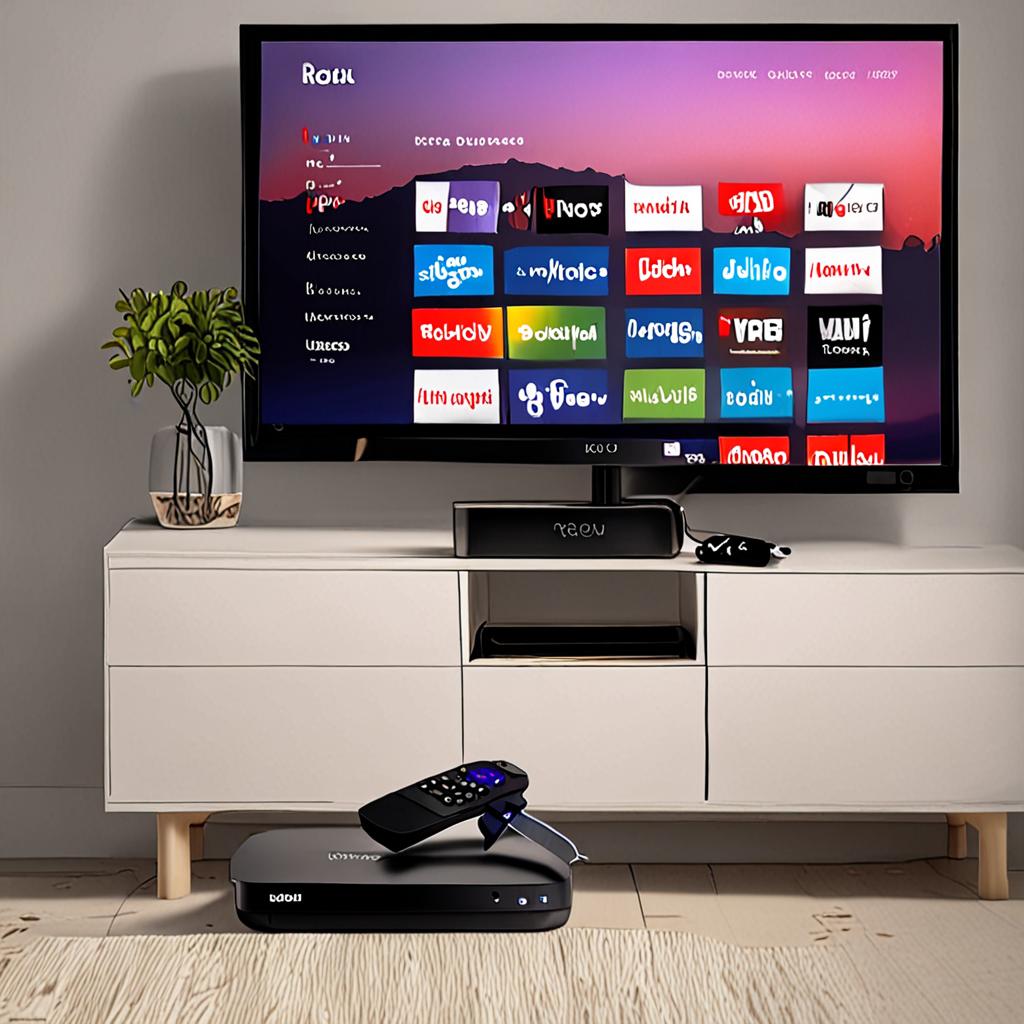
IPTV Roku Express Setup: Complete Installation and Configuration Guide
Setting up IPTV on Roku Express is one of the most affordable ways to access thousands of live TV channels without a cable subscription. The Roku Express, priced at just 30 dollars, transforms any television with an HDMI port into a full-featured streaming device. When paired with a premium IPTV service like IPTVProvide, this budget-friendly device delivers access to over 29,500 channels, making it one of the best value propositions in home entertainment.
This guide provides detailed, step-by-step instructions for setting up IPTV on your Roku Express. Whether you are a complete beginner or an experienced streamer, you will find everything you need to get live television running smoothly on your Roku Express device.
What You Need for IPTV Roku Express Setup
Before starting the setup process, make sure you have everything required. The hardware requirements are minimal, which is part of the appeal of the Roku Express for IPTV.
- Roku Express device (any generation, though newer models perform better)
- A television with an available HDMI port
- A stable internet connection (minimum 10 Mbps for HD, 25 Mbps for 4K on Express 4K model)
- A Roku account (free to create at roku.com)
- An IPTVProvide subscription (or free 24-hour trial)
- A smartphone or computer for initial configuration
Step 1: Physical Setup of Your Roku Express
Connect the Roku Express to your television using the included HDMI cable. Plug the device into a power outlet using the included USB power cable and adapter. Turn on your television and switch to the HDMI input where you connected the Roku Express. The device will power on and display the Roku setup screen.
Follow the on-screen prompts to select your language, connect to your Wi-Fi network, and sign in to your Roku account. If you do not have a Roku account, you can create one for free during this process. The Roku Express will download and install any available software updates, which may take a few minutes.
Step 2: Installing IPTV-Compatible Apps on Roku Express
The Roku Channel Store has a more curated selection compared to the Google Play Store or Amazon Appstore. While dedicated IPTV apps like TiviMate and IPTV Smarters are not available directly in the Roku store, there are several effective methods to watch IPTV on your Roku Express.
The most reliable method is using an M3U playlist player. Search the Roku Channel Store for media player apps that accept M3U URLs. Install the app, open it, and enter the M3U playlist URL provided by IPTVProvide with your subscription. The app will parse the playlist and display all available channels organized by category.
Alternatively, use the screen mirroring method. On your Roku Express, go to Settings, then System, then Screen Mirroring. Set the mode to Always Allow or Prompt. On your Android phone or Windows computer, install an IPTV app like IPTV Smarters, enter your IPTVProvide credentials, and then cast your screen to the Roku Express. This method gives you access to the full functionality of advanced IPTV apps through your Roku.
Step 3: Configuring IPTV Roku Express for Best Performance
The Roku Express has more modest hardware compared to the Roku Ultra or Streaming Stick 4K, so optimizing settings is important for the smoothest IPTV experience. In your IPTV app or media player, set the default stream quality to 720p or 1080p rather than 4K, as the standard Roku Express is limited to 1080p output.
Position your Roku Express as close to your Wi-Fi router as possible. The Express model relies entirely on Wi-Fi and does not have an Ethernet port. Strong Wi-Fi signal strength is essential for uninterrupted streaming. If your router is in a different room, consider a Wi-Fi extender or mesh network system to ensure adequate coverage.
Clear the Roku Express cache periodically by going to Settings, System, then Power, and selecting System Restart. This clears temporary data and can resolve sluggish performance or playback issues.
Troubleshooting IPTV on Roku Express
If channels load slowly or buffer frequently, the most common cause is Wi-Fi signal weakness. Check your signal strength in Settings, Network, and look for the signal strength indicator. If it shows less than Good, you need to improve your wireless connection by moving the router closer, removing obstructions, or adding a Wi-Fi extender.
Screen mirroring lag can occur if your phone and Roku are on different Wi-Fi bands. Ensure both devices are connected to the same network, ideally the 5GHz band. Close any unused apps on your phone to free up processing resources for the mirroring session.
If the M3U playlist fails to load, verify the URL is entered correctly with no extra spaces or missing characters. IPTVProvide can regenerate your playlist URL if needed. Contact support via WhatsApp at +1 (559) 508-2154 for immediate assistance.
Roku Express vs Roku Express 4K for IPTV
If you are purchasing a new Roku device specifically for IPTV, the Roku Express 4K is worth the small price premium over the standard Express. The 4K model supports Ultra HD output, HDR10, and has a faster processor that handles IPTV streams more smoothly. The dual-band Wi-Fi on the 4K model also provides more stable connections.
However, the standard Roku Express is perfectly capable of running IPTV in HD quality. If you already own one, there is no need to upgrade immediately. IPTVProvide's streams are optimized for devices at every performance level, and the anti-freeze technology ensures smooth playback even on modest hardware.
Why Choose IPTVProvide for Your Roku Express
IPTVProvide delivers the best IPTV experience on Roku Express with server-side optimization that compensates for the device's hardware limitations. The anti-freeze technology and adaptive bitrate streaming ensure that your Roku Express delivers consistent, buffer-free playback across all 29,500 plus channels. With 99.9 percent uptime and 24/7 support, you can count on reliable live TV every day.
Try IPTVProvide free for 24 hours on your Roku Express. Experience the full channel lineup, browse the EPG, and test the streaming quality before committing. For step-by-step IPTV Roku Express setup assistance, contact the support team via WhatsApp at +1 (559) 508-2154. The team will walk you through every step until you are watching live TV.
Ready to Start Streaming?
Get instant access to 20,000+ live channels, 4K streaming, and 80,000+ movies and series.
View Plans & Pricing